
Introduction
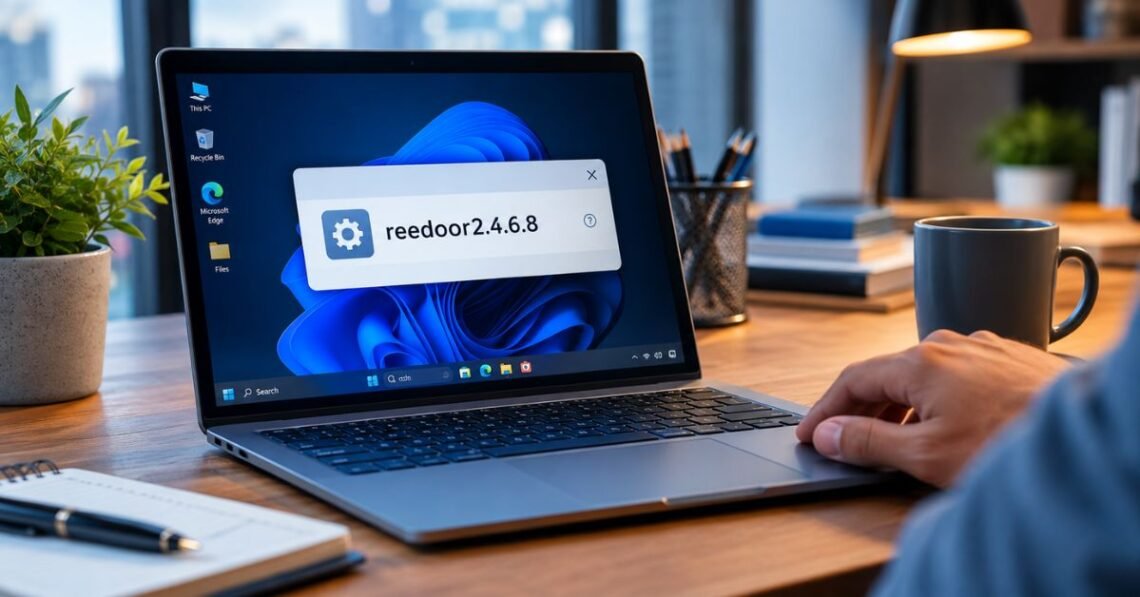
You may have seen the name reedoor2.4.6.8 on a website, in a pop-up, or in a list of files on your PC. Now you want to know what it is and whether it can hurt your computer. That is a smart question to ask.
Many websites talk about this name, but they do not agree with each other, and almost none show proof. Some call it a Windows tool. Others call it an antivirus. A few say it manages data. None of them point to a real company, a real download page, or a real support team.
In this guide, you will learn what is known, what is only a guess, and what you can do to stay safe. The checking steps use tools that already come with Windows 10 and Windows 11, so you do not need to buy anything. Everything is written in simple words, and every step is easy to follow.
What Is This Name, Really
The honest answer is that nobody has shown clear proof of what it is. It is not a part of Microsoft Windows. It is not listed on Microsoft’s help pages. Our search also found no company that claims to have made it, no developer page, and no signed download.
The numbers at the end look like a version number, and that makes the name sound like real software. But a version number proves nothing. Anyone can type numbers after a word.
Think of it like a jar with a neat label but no list of ingredients. The label looks nice, yet you still do not know what is inside.
Some writers say it manages hardware. Others say it protects data or cleans your system. These claims cannot all be true at once. When a name has many stories and no source, the smart move is simple: treat it as unknown until a trusted source proves otherwise.
This does not mean it is a virus. It only means nobody can confirm it is safe. That is why checking before you click is so important.
Why Do So Many Websites Describe It Differently
When you search for this name, you will find pages with long feature lists. Some mention registry keys, memory numbers, and background services. These details sound technical and trustworthy, but they usually come with no source, no screenshot, and no link to an official download.
Why does this happen? Many sites write about odd search terms just to get visitors. The writers may not have the software. They fill the page with details that sound right. Even some pages with long feature lists admit in their own FAQ that the real purpose is unclear.
Here are signs that a page is guessing:
- It gives exact numbers but no proof.
- It never names the company that made the software.
- It has no link to an official download page.
- It repeats the same ideas in many different words.
- Other pages on the same site follow the same pattern.
A good rule is to trust pages that show their sources. Microsoft, government security sites, and well-known security companies explain where their facts come from. If a page cannot do that, do not base your choices on it.
Is It Safe to Download or Run
Nobody can promise that it is safe, so the best answer is “not proven.” There are three things this name could be:
- A harmless file name. Some programs use odd names, and nothing is wrong.
- An unwanted program. This could be adware that shows ads or changes your browser.
- A harmful program. This could be malware that steals passwords or damages files.
You cannot tell which one it is just by looking at the name. That is why the checks matter more than the name.
Use this simple rule: if a program is unknown and has no valid digital signature, do not run it. A digital signature is like a seal on a package. It shows who sent the file and proves that nobody changed it. Real software from real companies is almost always signed.
Also, be careful if the file came from a pop-up, an email, or a free download site. Those are the most common ways that bad programs reach people. If you want to learn more about signatures, read our guide to digital signatures on Windows.
Where Do People Usually See This Name

Knowing where you saw the name helps you decide what to do. Here are the most common places:
In a search result. If you only read about it, you are safe. Reading a page cannot harm your computer. Just do not click download links on pages that have no clear owner.
In a pop-up or alert. This is a red flag. Real Windows warnings come from the Windows Security app, not from a random website window. Close the tab and do not call any phone number shown.
On a download page. Free software sites often bundle extra programs inside an installer. If the page does not name a company, skip it.
In your Task Manager or Programs list. This needs a closer look. A program may have been installed by you, by someone else who uses the PC, or by another app without you noticing.
In a file name in your Downloads folder. Do not open it. Right-click it and scan it first.
For each case, the safest first step is to stop and check. Fast clicking is how most infections start. A calm, slow check takes only a few minutes and can save you days of trouble.
Warning Signs of a Fake Program or Scam
Scammers like confusing names because people search for them in a hurry. If you see reedoor2.4.6.8 in a message that scares you, slow down. Fear is the main tool scammers use.
Watch for these warning signs:
- A pop-up that says your PC is infected and tells you to call a number.
- A button that says “Fix now” on a website, not inside Windows.
- A timer or countdown that pushes you to act fast.
- A “free antivirus” offer with no company name.
- An installer that asks for many extra permissions or adds toolbars.
- A request to turn off Windows Security before installing.
Real security software never needs you to switch off your protection. If an installer asks for that, stop right away.
The U.S. Federal Trade Commission explains how to spot and avoid these tricks in its guide on how to recognize and avoid phishing scams. It is free and easy to read.
If you already clicked something, do not panic. Close the window, run a scan, and follow the steps later in this guide.
Visual Guide: Risk Chart and Safety Checks
Use these tables for a quick look. The first shows how risky each situation is. The second shows how a real program differs from an unknown one.
Where you saw it and what to do
| Where you saw it | Risk level | Best action |
|---|---|---|
| Only in search results | Low | Read, but do not download |
| Pop-up with a phone number | High | Close the tab, do not call |
| Free download website | Medium to high | Skip it, use official sites |
| In Task Manager | Medium | Check the file location and signature |
| File in Downloads folder | Medium | Scan it, do not open it |
| Email attachment | High | Delete it, do not open |
Real program or unknown program
| Question | Trusted program | Unknown program |
|---|---|---|
| Does it name a company? | Yes | No |
| Does it have an official website? | Yes | No |
| Is the file digitally signed? | Yes, and valid | Missing or invalid |
| Can you find help and support pages? | Yes | No |
| Is it listed in Microsoft’s trusted sources? | Often yes | No |
Simple flow: See an unknown name → Do not click → Check the source → Scan the file → Check the signature → Decide.
How to Check a File on Windows, Step by Step
You can check almost any file with tools already on your PC. Follow these steps in order.
Scan with Windows Security. Right-click the file and choose “Scan with Microsoft Defender.” Wait for the result.
Check the digital signature. Right-click the file, choose Properties, and open the Digital Signatures tab. If the tab is missing, that is a warning. If it is there, click Details and look for the message “This digital signature is OK.”
Find where it lives. If it is running, open Task Manager by pressing Ctrl + Shift + Esc. Right-click the process and choose “Open file location.” Real Windows files live in the Windows folder, and real apps live in Program Files. Strange folders, such as Temp, are a warning.
Check the file hash. Open PowerShell and type: Get-FileHash "C:\path\to\file.exe". Compare the result with the hash the real developer publishes. If there is no developer, there is nothing to compare.
Look for the source. Ask yourself where the file came from. If you cannot answer, do not trust it.
Microsoft explains its security tools on its Windows support pages. For more help, see our Windows security checklist.
What to Do If You Already Installed It
If you already ran an installer with this name, stay calm. Many problems can be fixed quickly when you act early.
First, stop using the program. Close it and do not enter any passwords or bank details while it is running.
Second, run a full scan. Open Windows Security, go to Virus & threat protection, choose Scan options, and pick Full scan. This can take some time, so let it finish.
Third, check your browser. Open your browser’s extension list and remove anything you do not remember adding. Also check that your home page and search engine have not changed.
Fourth, change your passwords. If you typed any passwords while the program was open, change them from a different, clean device. Start with email and banking.
Fifth, watch your accounts. Look for strange logins, new devices, or charges you do not know about. Turn on two-step login wherever you can.
Sixth, ask for help if needed. If your PC is at work, tell your IT team right away. If it is a home PC and things still seem wrong after cleaning, a trusted repair shop can help.
Acting fast matters. The sooner you scan and change passwords, the less chance a bad program has to cause harm.
How to Remove a Suspicious Program Safely
If you find reedoor2.4.6.8 on your PC and you do not know why it is there, remove it carefully. Follow these steps:
- Make a restore point. Search for “Create a restore point” in the Start menu. This gives you a way back if something goes wrong.
- Uninstall it normally. Open Settings, go to Apps, then Installed apps. Find the program, click the three dots, and choose Uninstall.
- Stop it from starting. Open Task Manager, click Startup apps, and disable anything unknown.
- Run an offline scan. In Windows Security, choose Scan options, then Microsoft Defender Offline scan. Your PC will restart and scan before Windows loads, which helps catch hidden threats.
- Clean your browser. Remove strange extensions and reset the browser if settings look changed.
- Restart and check again. Make sure the program does not come back.
If the program will not uninstall, or it returns after a restart, that is a strong sign of unwanted software. In that case, run the offline scan again and ask a trusted expert for help. Do not download “cleaner” tools from random sites, since many of them are scams too.
How to Stay Protected in the Future
Good habits protect you better than any single tool. Here are simple ones to follow in 2026:
- Download from official sites only. Go to the maker’s own website or the Microsoft Store.
- Keep Windows updated. Updates fix security holes that attackers use.
- Leave Windows Security on. It is free, built in, and works well for most people.
- Use a normal account for daily work. Save the admin account for installing trusted software.
- Use strong, different passwords. A password manager makes this easy.
- Back up your files. Keep a copy on an external drive or a trusted cloud service.
- Think before you click. Pop-ups and urgent messages are rarely real.
The U.S. Cybersecurity and Infrastructure Security Agency shares free, simple tips on its Secure Our World page. They cover passwords, updates, and spotting scams in plain language.
You can also read our beginner’s guide to safe downloads for more tips. A few small habits, done every time, make a big difference.
Frequently Asked Questions
What is reedoor2.4.6.8
It is an unverified name with no known maker, official site, or Microsoft listing. Treat it as unknown until proven otherwise.
Is it a virus
Nobody can confirm that it is or is not. Scan any related file with Windows Security and avoid running it.
Can I download it safely
No safe, official download source has been found. It is best to avoid it.
How do I check an unknown program in Windows
Scan it with Windows Security, check its digital signature, and see which folder it runs from.
What should I do if a pop-up mentions it
Close the browser tab and never call the phone number shown. Run a scan if you clicked anything.
Conclusion
The main lesson is simple. The name reedoor2.4.6.8 has many stories online, but no proof from a real company or a trusted source. Because of that, the safest choice is to treat it as unknown and avoid downloading or running it.
You do not need to be a tech expert to stay safe. Scan files with Windows Security, check digital signatures, look at where a program is stored, and be careful with pop-ups. If you already installed something odd, scan your PC, clean your browser, and change your passwords from a clean device.
Remember that good safety habits matter more than any single name. Download only from official sites, keep Windows updated, and think before you click. These steps protect you from this problem and from many others.